Integration Question - API
Integration question can be connected to an external resource using its API. We can then search for the results from the external service using the FAIR Wizard questionnaire interface. When we select an answer it is not only the text (such as a name of the database), but also a link to the external service to the selected item. The whole flow is denoted in the following diagram.
We can use Jinja2 templating language to construct everything in integrations. We also have this cheatsheet available.
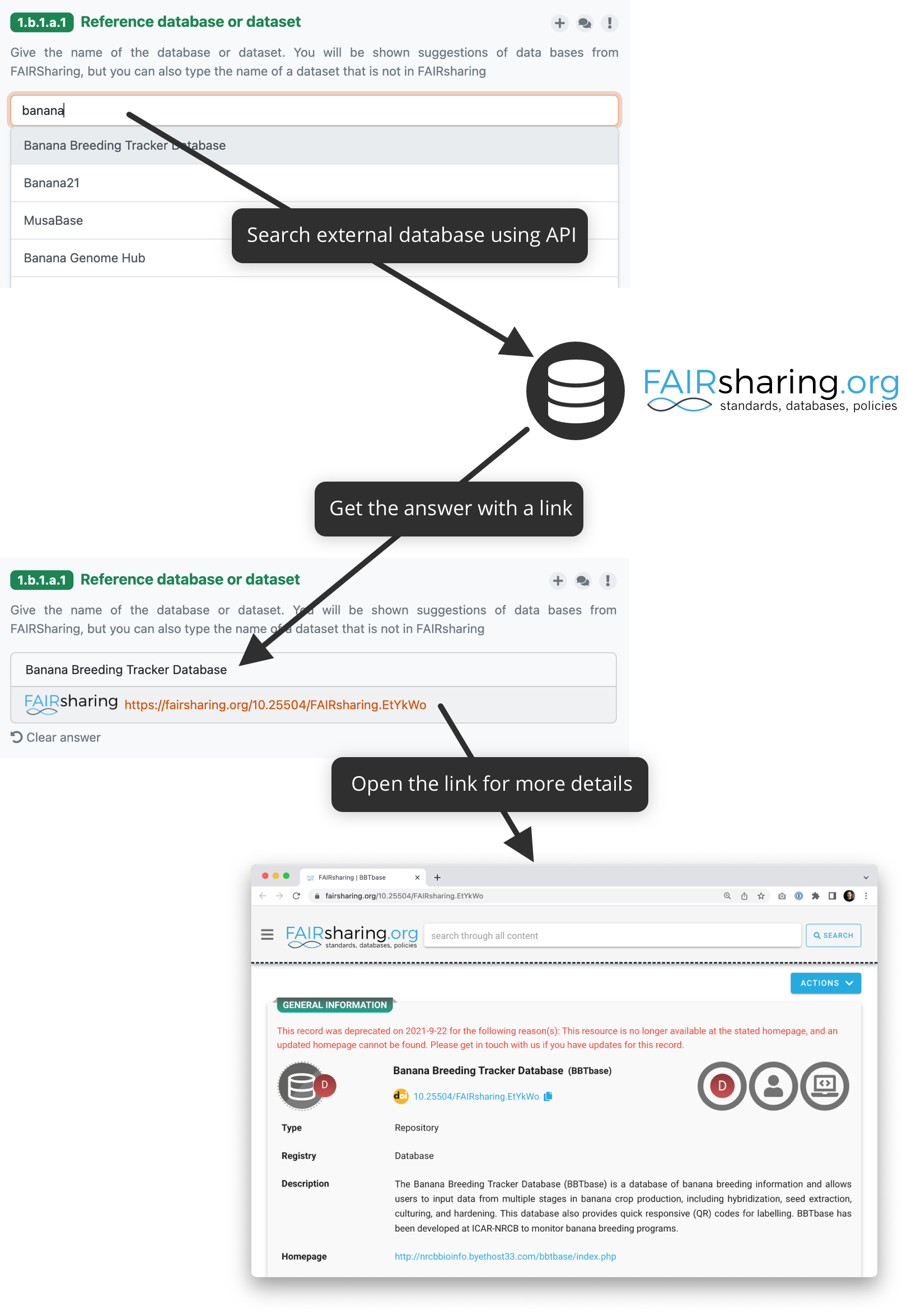
How integration question connected to, for example, FAIRsharing API works.
External Service Requirements
If we want to connect an external service using the API there are certain requirements for it to make the connection to FAIR Wizard possible.
Allows search using free text
There must be a way to send a search phrase to the API so that it can filter the results based on it
Returns a JSON response with a list of results
The response must be JSON so FAIR Wizard can parse it
There needs to be a JSON list where all the items matching the search query are
Configuration
Watch this video to learn the basic API Integration setup:
The configuration is done in the knowledge model editor. First of all, we need to create a new integration and choose its Type to be API. Then we need to fill the integration Name.
Advanced Integration Configuration
Additional integration configuration can be used when we want to force the integration reply, or when adding and editing Variables and Secrets.
Allow Custom Reply - The custom reply is turned on by default. We can turn it off if we want to force the integration reply. In that case, users will have to select one of the results from the external service, otherwise their reply will not be saved. This can be mentioned in the question description for the researchers.
Variables - We can use variables to parametrize the integration for each question. Variables can be filled on questions that use this integration and then used in the request configuration. For example, if you define a variable named
type, you can use it as{{ variables.type }}, such ashttps://example.com/{{ variables.type }}.Secrets - Secrets can be used to store sensitive information, such as API keys or access tokens. We can reference these secrets as
{{ secrets.secret_name }}anywhere in the request configuration, but their values will not be exposed in the question or answer templates. The additional knowledge model secrets documentation can be found here.
Request Configuration
Clicking on field before the URL we can switch between GET and POST request methods.
In the full API endpoint used for search we can use {{ q }} to insert the user’s search term, and {{ variables.name }} for referencing variables and {{ secrets.name }} for secrets.
So for example, we can write Request URL as:
{{ secrets.apiUrl }}/search/?q={{ q }}®istry={{ variables.registry }}
We can also import the request configuration from a cURL command using the Import button.
Advanced Request Configuration
The advanced request configuration defines how the API request is constructed. This includes the request HTTP headers, request HTTP body and allow empty search switch.
Request HTTP Headers - some headers might be needed, such as
Accept: application/jsonto have a correct response typeRequest HTTP Body - if we need to send some HTTP body
Allow Empty Search - some APIs don’t work if we try to search with an empty string, turn this of in such case
We can use {{ q }} for the search term, {{ variables.name }} for referencing variables and {{ secrets.name }} for secrets within those fields.
Test
In this section we can test the API integration. After filling in Request Configuration, Test Search Query, and optionally Test Variables we can use the Load button to send a test request to the API and see the response.
Then we can view the Request Details and Response. In case of a large response, there will be no syntax highlighting for better performance. Otherwise, the response JSON will be syntax highlighted for better readability. There is also a Copy response button to copy the whole response JSON. In case of error we can check the logs for more information. In case of success, we can see the response JSON and use it to fill the Response Configuration.
Response Configuration
Warning
We need to run a valid test request before we can configure the response.
In the Response section, we configure how to process the JSON response from the external service. For that, we need to configure the following:
Response List Field - where in the JSON response is the list of items corresponding to the search query
Response Item Template - how we want to present the result to the user
Note
We can also set the Response Item Template and/or Response Item Template for Selection to setup logo for the integration if we can access it.
The integration will show suggestions for Response List Field and Response Item Template based on the response structure. We can click the suggestions to insert them in the fields in the Jinja2 notation.
Advance Response Configuration
The Advance response configuration allows to set Response Item Template for Selection which can be used to define how the selection of items from the integration will be presented before selection.