Integration Question - API
Integration question can be connected to an external resource using its API. We can then search for the results from the external service using the FAIR Wizard questionnaire interface. When we select an answer it is not only the text (such as a name of the database), but also a link to the external service to the selected item. The whole flow is denoted in the following diagram.
We can use Jinja2 templating language to construct everything in integrations. We also have this cheatsheet available.
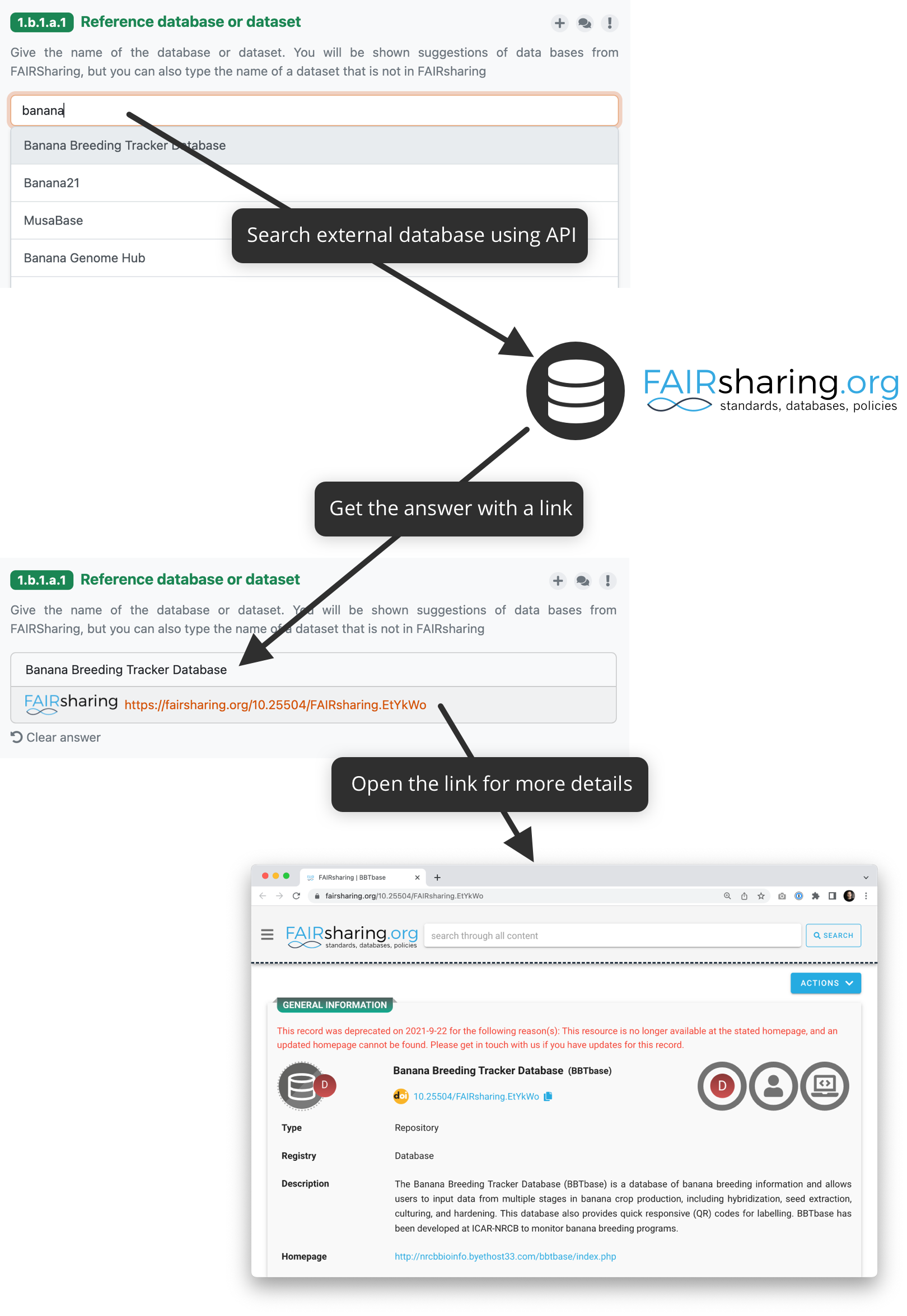
How integration question connected to, for example, FAIRsharing API works.
External Service Requirements
If we want to connect an external service using the API there are certain requirements for it to make the connection to FAIR Wizard possible.
Allows search using free text
There must be a way to send a search phrase to the API so that it can filter the results based on it
Returns a JSON response with a list of results
The response must be JSON so FAIR Wizard can parse it
There needs to be a JSON list where all the items matching the search query are
Configuration
Watch this video to learn the basic API Integration setup:
The configuration is done in the knowledge model editor. First of all, we need to create a new integration and choose its Type to be API. Then we need to fill the integration Name.
Advanced Integration Configuration
Additional integration configuration can be used when we want to force the integration reply, or when adding and editing Variables and Secrets.
Allow Custom Reply - The custom reply is turned on by default. We can turn it off if we want to force the integration reply. In that case, users will have to select one of the results from the external service, otherwise their reply will not be saved. This can be mentioned in the question description for the researchers.
Variables - We can use variables to parametrize the integration for each question. To define the variables, whose value can be filled on the questions using this integration. The variables can then be used in the request configuration. For example, if you define a variable named type, you can use it as
{{ variables.type }}, such ashttps://example.com/{{ type }}.Secrets - Secrets can be used to store sensitive information, such as API keys or access tokens. We can reference these secrets as
{{ secrets.secret_name }}anywhere in the request configuration, but their values will not be exposed in the question or answer templates. The additional knowledge model secrets documentation can be found here.
Request Configuration
Clicking on field before the URL we can switch between GET and POST request methods.
In the full API endpoint used for search we can use {{ q }} to insert the user’s search term, and {{ variables.name }} for referencing variables and {{ secrets.name }} for secrets.
So for example, we can write Request URL as:
{{ secrets.apiUrl }}/search/?q={{ q }}®istry={{ variables.registry }}
We can also import the request configuration from a cURL command using the Import button.
Advanced Request Configuration
The advanced request configuration defines how the API request is constructed. This includes the request HTTP headers, request HTTP body and allow empty search switch.
Request HTTP Headers - some headers might be needed, such as
Accept: application/jsonto have a correct response typeRequest HTTP Body - if we need to send some HTTP body
Allow Empty Search - some APIs don’t work if we try to search with an empty string, turn this of in such case
We can use {{ q }} for the search term, {{ variables.name }} for referencing variables and {{ secrets.name }} for secrets within those fields.
Test
In this section we can test the API integration. After filling in Request Configuration, Test Search Query, and optionally Test Variables we can use the Load button to send a test request to the API and see the response.
Then we can view the Request Details and Response. In case of a large response, there will be no syntax highlighting for better performance. Otherwise, the response JSON will be syntax highlighted for better readability. There is also a Copy response button to copy the whole response JSON. In case of error we can check the logs for more information. In case of success, we can see the response JSON and use it to fill the Response Configuration.
Response Configuration
Warning
We need to run a valid test request before we can configure the response.
In the Response section, we configure how to process the JSON response from the external service. For that, we need to configure the following:
Response List Field - where in the JSON response is the list of items corresponding to the search query
Response Item Template - how we want to present the result to the user
Note
We can also set the Response Item Template and/or Response Item Template for Selection to setup logo for the integration if we can access it.
The integration will show suggestions for Response List Field and Response Item Template based on the response structure. We can click the suggestions to insert them in the fields in the Jinja2 notation.
Advance Response Configuration
The Advance response configuration allows to set Response Item Template for Selection which can be used to define how the selection of items from the integration will be presented before selection.
Integration Question - API (Legacy)
Warning
This section covers legacy integration type. This integration type is deprecated and will be removed in the future. Please use the new API integration type instead.
Integration question can be connected to an external resource using its API. We can then search for the results from the external service using the FAIR Wizard questionnaire interface. When we select an answer it is not only the text (such as a name of the database), but also a link to the external service to the selected item. The whole flow is denoted in the following diagram.
How integration question connected to, for example, FAIRsharing API works.
External Service Requirements (Legacy)
If we want to connect an external service using the API there are certain requirements for it to make the connection to FAIR Wizard possible.
Allows search using free text
There must be a way to send a search phrase to the API so that it can filter the results based on it
Returns a JSON response with a list of results
The response must be JSON so FAIR Wizard can parse it
There needs to be a JSON list where all the items matching the search query are
It is possible to construct a link to the selected item
We also need to be able to construct the link to the item from the data we get in the response so we can provide it with the answer
Configuration (Legacy)
The configuration is done in the knowledge model editor. First of all, we need to create a new integration and choose its Type to be API. Then, there are some metadata, such as ID, Name, or Logo URL.
Request Configuration (Legacy)
In the Request section, we configure how to make an HTTP requests to the external service’s API. For that, we need to configure the following (the specific values depends on how the API works):
Request URL - what is the URL where we want to send search requests
Request HTTP Method - what HTTP method should be used
Request HTTP Headers - some headers might be needed, such as
Accept: application/jsonto have a correct response typeRequest HTTP Body - if we need to send some HTTP body
Allow Empty Search - some APIs don’t work if we try to search with an empty string, turn this of in such case
There is a special property ${q} that we can use within those fields. The property represents the string that users type to the questionnaire. When configuring Request HTTP Headers and Request HTTP Body, we can also use other variables such as props to pass the search query to the API.
So for example, we can write Request URL as:
http://example.com/api/search?q=${q}
Response Configuration (Legacy)
In the Response section, we configure how to process the JSON response from the external service. For that, we need to configure the following:
Response List Field - where in the JSON response is the list of items corresponding to the search query
Response Item ID - what field represents an item ID in the returned JSON
Response Item Template - how we want to present the result to the user
We can use Jinja2 templates (Ginger implementation) in Response Item ID and especially in Response Item Template to make the response item look better.
Secrets and Other Properties (Legacy)
Sometimes, we might need to use some secrets (for example for authentication token), additional properties (such as API URL if we want to use different one for testing and production), or basically any information that we do not want to include in the knowledge model. In that case, we can define some properties in the instance settings.
We need to navigate to Administration → Settings → knowledge models and there is a field called Integration Config. It is a YAML organized by the Integration ID at the top level and key value pairs for each property.
We can fill some properties in. So, for example, if the Integration ID of our integration is ourIntegration we can write:
ourIntegration:
    authorizationToken: "abcd"
    apiUrl: "http://example.com/api"
Then, in the configuration of our integration, we can use these properties in the request configuration, so for example the Request URL can be:
${apiUrl}/search?q=${q}
And we can add a header such as:
Authorization: Bearer ${authorizationToken}
Note
These properties can be accessed only from the integration with matching ID.
Video Tutorial (Legacy)
We have the following video tutorial showing how to set up the integration question using API.